
Section 1
Set up your Meta Business Manager
Meta Business Manager (now part of Meta Business Suite) is the secure central hub that holds your Facebook Page, Instagram account, ad account, and the team members who work on them. It's free and takes about five minutes to set up.
business.facebook.com/settings
- 1
Go to business.facebook.com
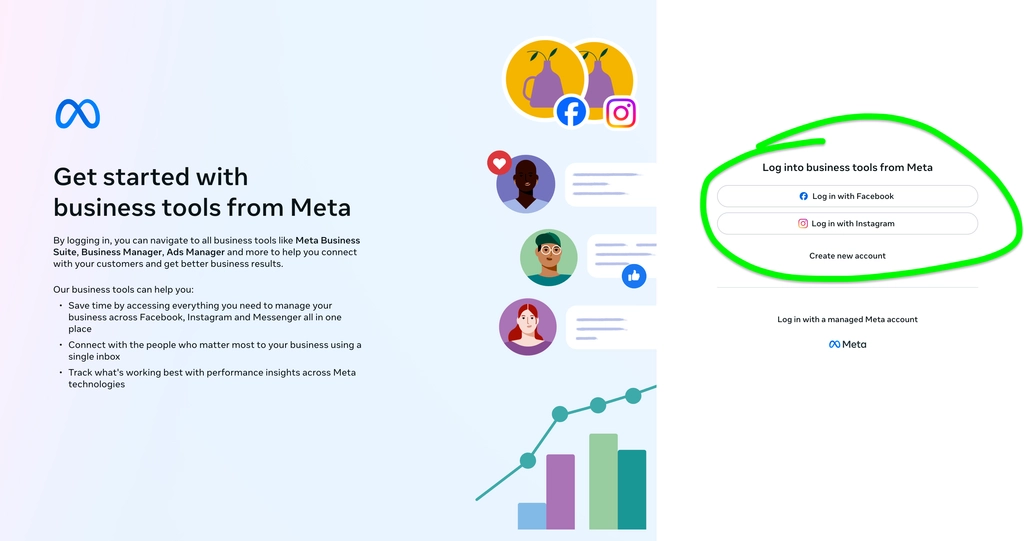
On a desktop browser, visit business.facebook.com. You'll land on Meta's official login screen titled “Get started with business tools from Meta”. - 2
Click “Log in with Facebook” (or Instagram)
Click the “Log in with Facebook” button (or “Log in with Instagram”) and sign in with your credentials. Your personal profile acts solely as the secure key to access your business assets — your personal data, posts, and messages remain completely private. If you don't have an account yet, click “Create new account”. - 3
Access your Business Portfolio or click Create
Once logged into Meta Business Suite, check the top-left business dropdown. If you already have a business portfolio, select it and click Settings (gear icon). If not, click “Create a business portfolio” (or “Create account”). - 4
Enter your business name and work email
Type your business or brand name exactly as you'd like it to appear. Then enter your full name and a work email address you regularly monitor. Meta uses this email for critical security alerts, portfolio notifications, and verification. - 5
Confirm the verification email
Open your email inbox and look for a message from Meta titled “Confirm your business email address”. Click the verification link inside to finalize your portfolio setup. - 6
Open Business Settings
Click the gear icon (Settings) in the bottom-left sidebar of Meta Business Suite, then open “Business Settings” (or Business Portfolio Info). Bookmark this dashboard — the remaining steps in this guide will branch directly from here.