
Section 5
Grant us full partner access
The final step is to add us as a Business Partner with full control. This lets us run, manage, and optimize your ads without ever needing your password — and you can revoke access anytime.
business.facebook.com/settings
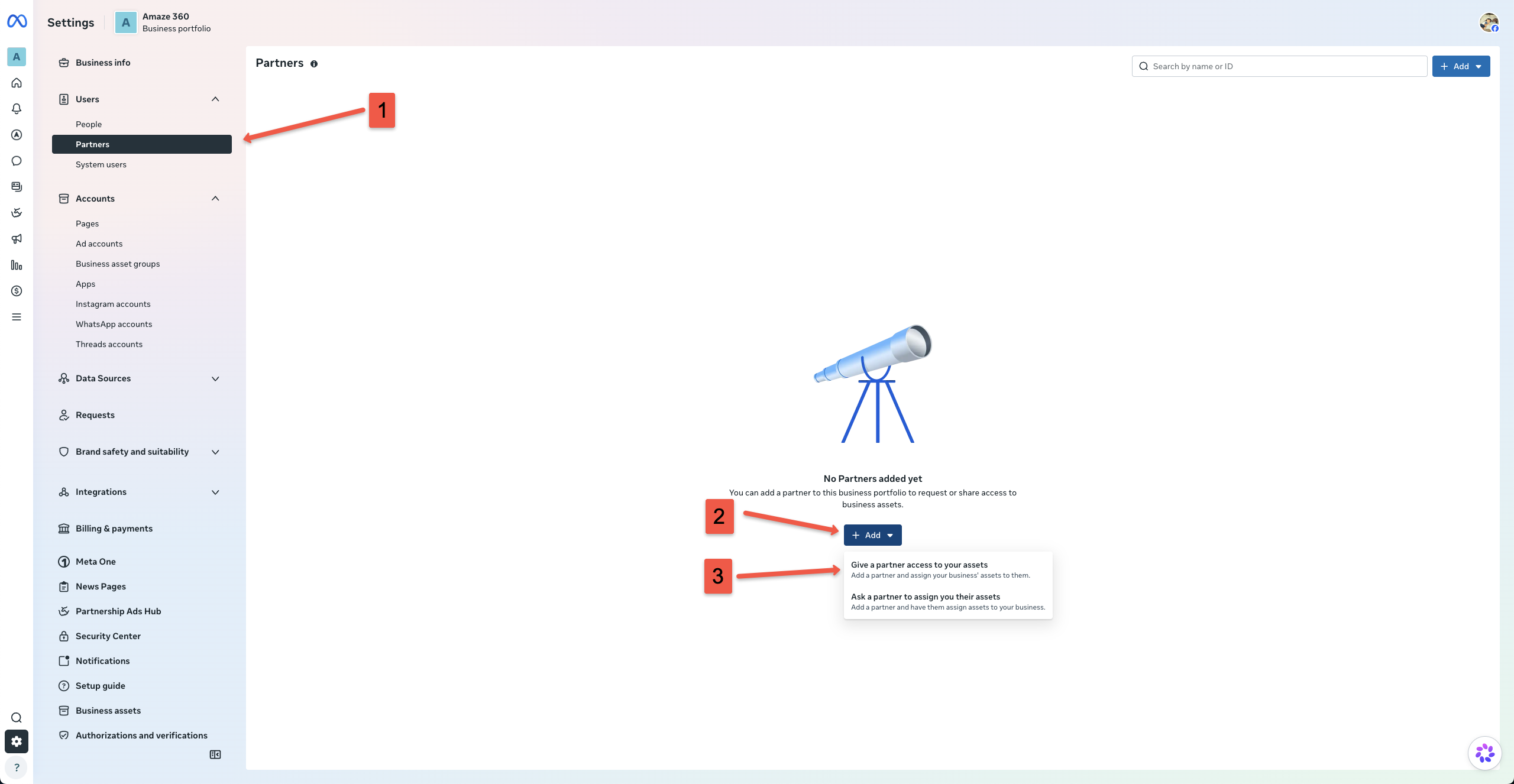
- 1
Click “Partners” under Users in the left sidebar
From your Meta Business Settings screen, look at the left navigation menu under “Users” and click “Partners”. Adding us as a Business Partner keeps your personal credentials private and ensures you always retain 100% ownership of your business. - 2
Click the blue “+ Add” button
Click the blue “+ Add” button in the center of the Partners panel (or in the top-right corner) to open the partner options dropdown. - 3
Choose “Give a partner access to your assets”
Select the first option: “Give a partner access to your assets” (Add a partner and assign your business' assets to them). Note: Do NOT choose “Ask a partner to assign you their assets”. - 4
Enter our Partner Business ID
In the pop-up modal, paste our Meta Business ID number into the “Partner business ID” field and click Next. If you need our ID number, reach out and we'll provide it immediately. - 5
Assign your assets (Facebook Pages, Ad Accounts, Instagram, & Datasets)
On the asset assignment screen, select each asset type on the left: Pages, Ad accounts, and Instagram accounts. Check the box next to your brand’s page and accounts. - 6
Enable “Full Access” for Ad account, Page management, & Datasets.
Toggle on “Full Access” (manage ad accounts). For your Facebook Page & Instagram, toggle on "Full Access" (Everything except sensitive actions). This allows us to create, launch, and optimize your campaigns without any roadblocks. - 7
Click “Save changes” & let us know!
Click “Save changes” to submit the partner assignment. You will see a confirmation screen that assets were shared. Once done, let us know, so we can verify access and begin setup!