
Section 4
Secure your account with 2FA
Two-factor authentication (2FA) adds a vital layer of security to your business portfolio. Meta requires 2FA to protect against unauthorized access and to run ad campaigns securely.
business.facebook.com/settings
- 1
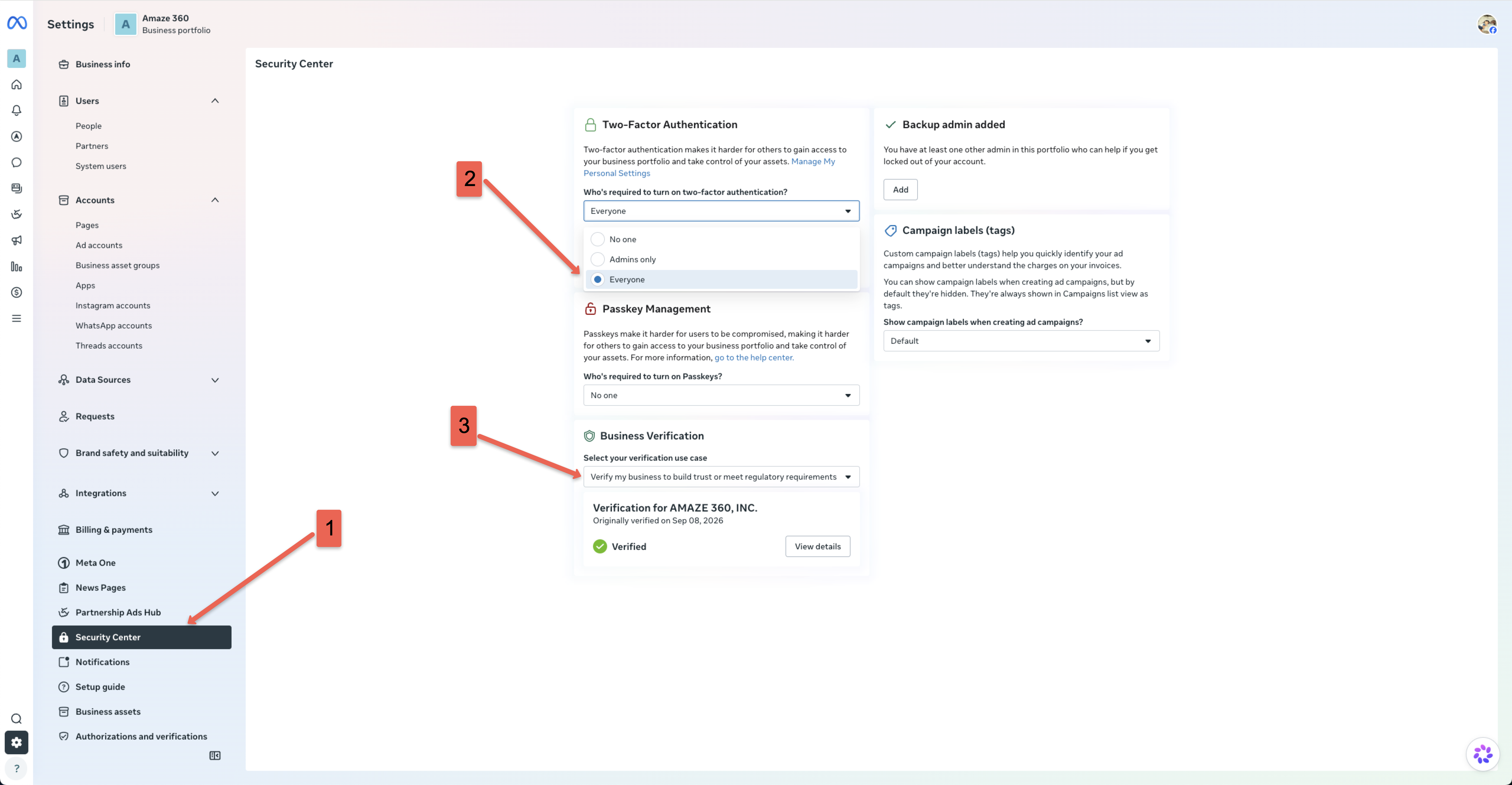
Click “Security Center” (1) in the left navigation sidebar
From your Meta Business Settings screen, scroll down the left-hand menu until you find “Security Center” (with the lock icon) and click it. - 2
Set Two-Factor Authentication to “Everyone” (2)
Under the “Two-Factor Authentication” card, click the dropdown under “Who's required to turn on two-factor authentication?” and select “Everyone”. This ensures all admins and team members must use 2FA to access the portfolio. - 3
Configure your personal 2FA settings (if not already done)
Click the blue “Manage My Personal Settings” link inside the 2FA card to make sure your own profile has an Authenticator app (e.g. Google Authenticator, Duo, or Authy) or SMS text codes enabled. - 4
Check Business Verification (3)
In the “Business Verification” card below, view your verification status. If prompted, select “Verify my business to build trust or meet regulatory requirements” and submit your business legal documents when requested. - 5
Add a backup admin (optional but recommended)
Under “Backup admin added”, ensure you have at least one trusted team member or co-owner listed who can help recover access if you ever get locked out.